
Notion client management for freelancers: keep track of clients and conversations

A client asks for a change you are certain you discussed before. You find their contact details immediately, but the decision itself is somewhere between an email thread and last month’s call notes.
A useful Notion client management setup helps you recover that context and act on it. It gives you somewhere to check the relationship, see the next follow-up and find what was agreed, without piecing the story together each time.
You can build a focused setup yourself or use a ready-built system. Either way, the important design decision is to keep current reminders and conversation history connected without making one do the job of the other.
At a glance
Keep one ongoing record for each client or prospect.
Separate relationship status from the action and follow-up date.
Use a short note for immediate context and linked records for fuller interaction history.
Review overdue follow-ups and actions missing a date.
Add connected projects and finance only when your work needs them.
What should Notion client management include?
Start with two kinds of information: the client’s current position and the history behind it.
The client record holds contact details, relationship status and the next follow-up. Its short note helps you remember what matters right now. Interaction records preserve individual calls, meetings, emails and decisions so that updating today’s reminder does not erase yesterday’s agreement.
This guide explains a suggested DIY structure and uses BrainyShack’s Client module to show how those principles work in a ready-built system. The suggested field names and filters are not a field-by-field specification of the product.
Create a useful record for each client and prospect
In a Clients database, give each person or business one ongoing record. For a practical first build, use these properties:
Client name, primary contact and email: who the relationship belongs to and how to reach them.
Relationship status: Prospect, Active, On hold or Past, for example.
Last contact: the date of the latest meaningful exchange.
Next action: a specific step, such as “Send revised proposal”.
Follow-up date: when to take or review that step.
Quick note: the immediate context you need when returning to it.
Relationship status describes where things stand. It does not tell you what to do next: an active client can need a reply today, while a prospect may have agreed to speak again next month.
Hypothetical example: you are a freelance designer, and Maya at Alder Studio enquires about a website refresh. After an introductory call on 3 October, you create a Prospect record. The next action is “Send proposal by 6 October”, and the quick note reads “Price design and optional copy support separately”.
That is enough to orient you when the follow-up comes around. The fuller discussion needs its own place, which we will return to below.
Make upcoming and overdue follow-ups easy to review
Create views of the same Clients database rather than maintaining separate client lists. Notion’s views, filters and sorts documentation explains how to show selected records and order them within each view.
For the DIY setup, useful views include:
Overdue: follow-up date before today, sorted oldest first.
Due today: follow-up date is today.
Coming up: follow-up date after today and within the next seven days, sorted earliest first.
Missing a date: next action is filled in and follow-up date is empty.
Combine conditions where both must be true. Check which relationship statuses you include: a past client with an agreed recontact date can still need attention. An action without a date also deserves review, because it will never reach your date-based queues.
A calendar gives scheduled follow-ups another useful view. In BrainyShack’s Client module, the short note on the client record appears on the calendar card, placing the reason for the follow-up alongside its timing.
On 6 October, you send Maya the proposal and agree to check back on 9 October. Update the action to “Check whether Maya has proposal questions”, move the follow-up date and change the quick note to “Proposal sent; awaiting feedback”. The calendar now reflects the next conversation rather than the completed task.
Review follow-ups before starting client work. After an exchange, update the next action and date, or clear them if nothing remains to do. The views rely on those updates; they do not send messages or capture your inbox.
BrainyShack’s Client Management System includes ready-built follow-up views and client administration alongside its relationship-history area.

Keep conversation history, preferences and decisions together
For a small DIY setup, dated notes inside the client page can preserve conversation history. When you want to review exchanges individually, create an Interactions database and connect its records to Clients using a Relation property. Notion’s relations documentation explains that connection.
Give each interaction a descriptive title, date, type and linked client, then capture what was discussed and decided. “Proposal scope agreed” is easier to recognise later than “Call notes”.
How Client Intelligence preserves the fuller history
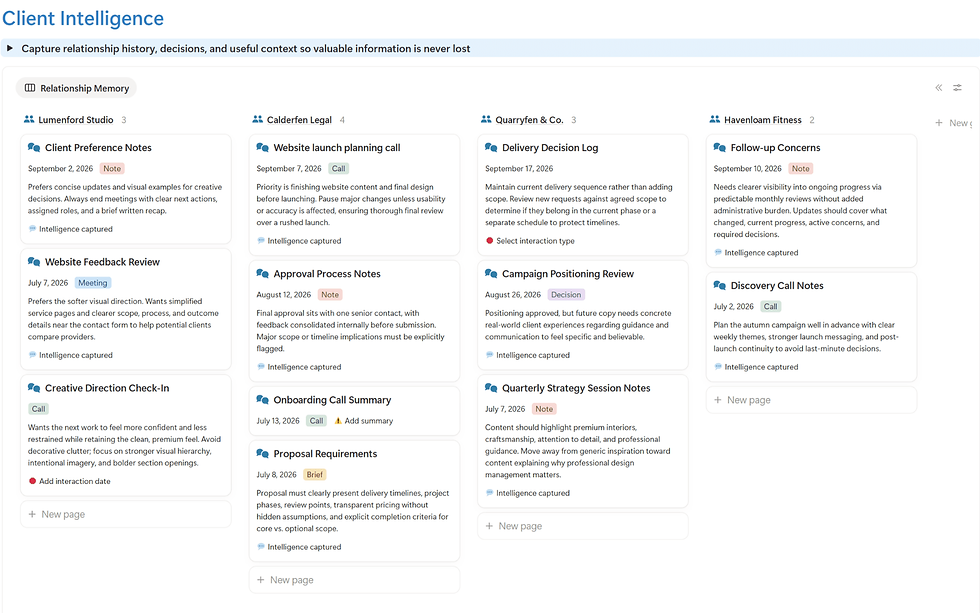
BrainyShack’s Client module already includes this dedicated section and interaction database. Client Intelligence keeps client-linked calls, meetings, emails, notes and decisions, including requirements, preferences and risks. It gives you a place to review what happened before the next exchange.
For Alder Studio, the 3 October call entry could contain:
Maya wants the existing five-page website refreshed. Keep the current logo. She prefers feedback by email. Separate design from optional copy support in the proposal. Send it by 6 October.
The quick client-record note highlights the proposal requirement on the calendar card. This interaction entry preserves the rest of the discussion, including the communication preference and the agreed scope.
When you send the proposal, add a second entry recording the exchange and the 9 October follow-up. Update the quick note to reflect the current position while leaving the earlier call intact. If Maya later changes the scope, record that decision and what it replaces so you can understand the change rather than finding two apparently conflicting notes.
Record enough to recover the agreement, and link to original correspondence when helpful. Keep lasting preferences in the client’s ongoing context too, so routine preparation does not require rereading every exchange. Email entries are manually captured relationship history; they do not imply automatic email import.
When client management also needs projects and finance
Maya accepts the proposal. Record the acceptance in the interaction history and change Alder Studio’s relationship status to Active. There is now work to deliver: collecting content, preparing designs, handling revisions and meeting deadlines.
Keep delivery progress separate from relationship status. The client can remain active while one project is complete and another is waiting on feedback. Expected payments and time spent also need their own records if you want to track them.
If your existing project and finance tools suit you, link to relevant work from the client record. If you want these areas connected in Notion, the Service Business Stack combines Client OS, Projects OS and Finance OS. It is the relevant option for connected client relationships, delivery and operational finance tracking.
The standalone Client Management System covers the relationship itself: records, follow-ups and Client Intelligence history. That is a complete scope when those are the areas you need to manage.
Build your own setup or choose a ready-built system?
Build your own if you are comfortable creating Notion databases, relations and views, and want to define how they work. Try the structure with a few real relationships before adding more properties. Check whether you can find both the next action and the agreement behind it.
Choose a ready-built system if you want those records, views and interaction-history structures already in place. You still maintain the information and carry out the follow-ups; the purchase removes the need to design the client-management structure first.
The setup described here and BrainyShack’s focused system are for internal relationship management. They are not presented as a client-facing portal or a replacement for specialist CRM software.
The useful test comes before your next client conversation: can you see what needs to happen, understand the current context and recover the relevant decisions? A setup that answers those questions has earned its place in your working day.
⬇️⬇️⬇️
Comments